How to auto-update your task wallpaper on iPhone
Set it up once in 2 minutes — and your lock screen will show your current tasks for the day all by itself. A fresh list in the morning, and an updated one every time you close Eva.
Eva can draw your tasks right onto your lock screen wallpaper. To keep them from going stale, we'll set up an automation: your iPhone will run the update shortcut on its own — on a schedule and the moment you close Eva.
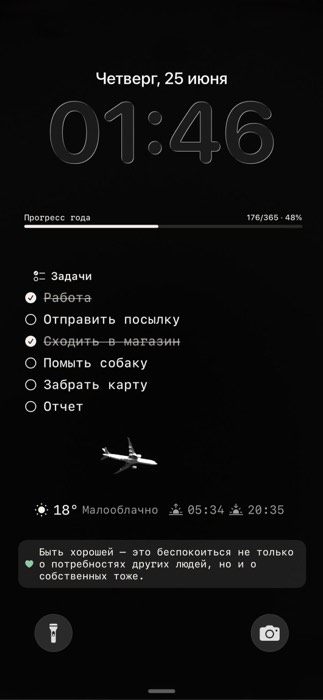
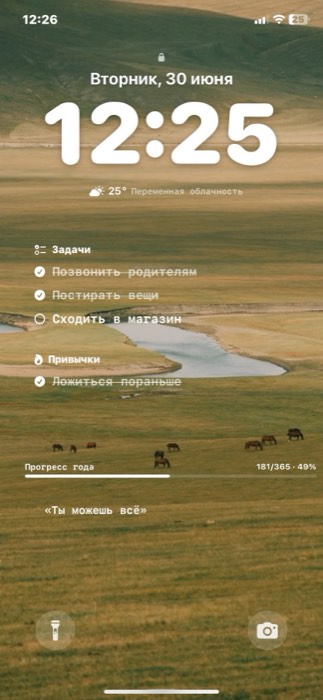
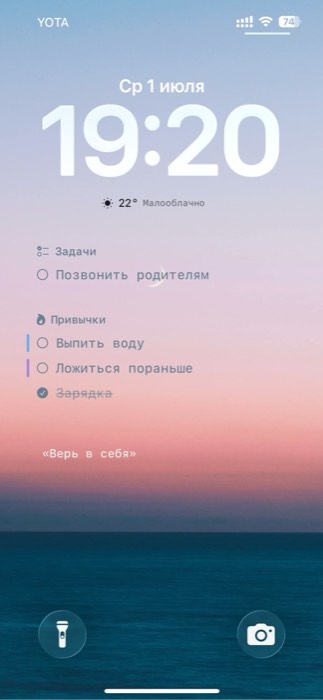
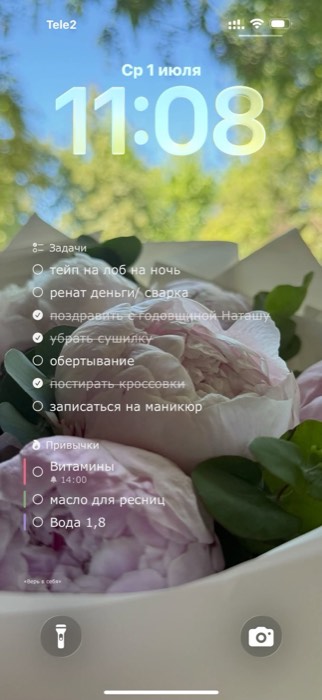
How it looks for other users
Everyone sets it up their own way — their own background photo, their own set of blocks: tasks, habits, weather, year progress, quote of the day.
Step 1. Add the shortcut
First, install the “Set Task Wallpaper Eva” shortcut. The easiest way is right from the app: open Settings → Task Wallpaper → “Auto-update” and tap “Add Shortcut”. Or install it via the direct link:
⬇️ Install the “Set Task Wallpaper Eva” shortcut
Step 2. Check that it works
Run the shortcut once manually (the “Run Shortcut” button in the app, or tap the shortcut in Shortcuts). Your lock screen should update and show your tasks.
Step 3. Turn on the automation
⏰ Time-based update (every morning)
A fresh wallpaper with the day's tasks is already waiting on your lock screen when you wake up.
- Open the Shortcuts app → Automation tab at the bottom → tap + in the top-right corner
- Choose the “Time of Day” trigger
- Set a time (for example 9:00 AM), repeat — “Daily”, and turn on “Run Immediately”
- Tap “Next” → type eva in the search and choose the “Set Task Wallpaper Eva” shortcut
- Done — the automation is created
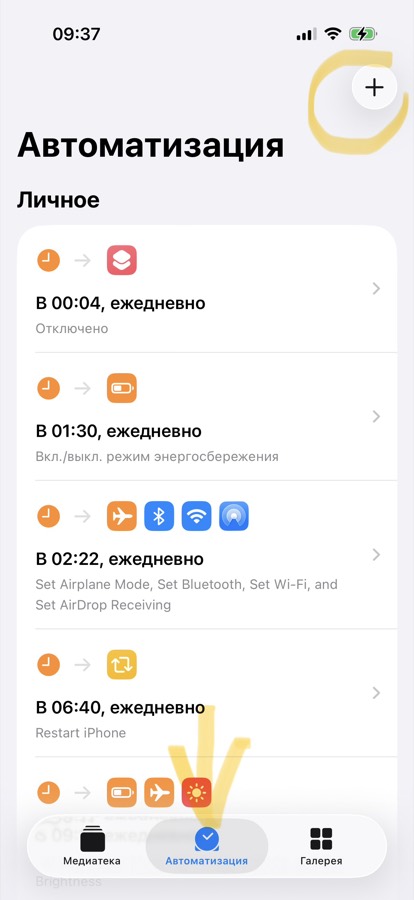
“Automation” tab → “+”
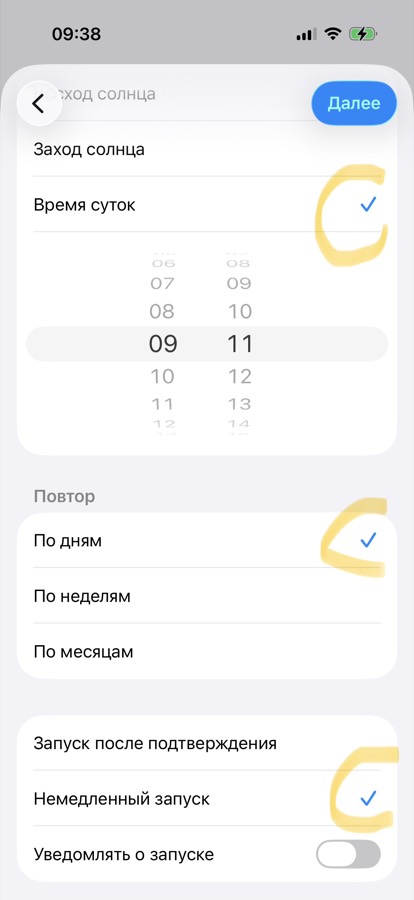
“Time of Day”, “Daily”, “Run Immediately”
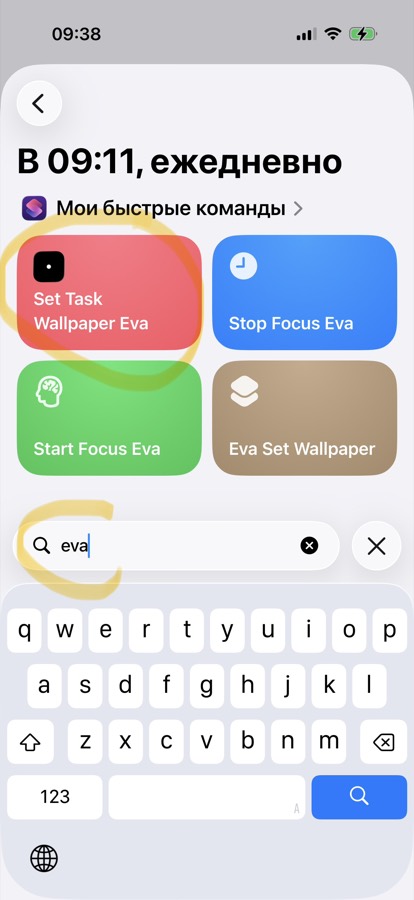
Find and choose “Set Task Wallpaper Eva”
📱 Update when Eva closes
Finished a task, closed the app — the wallpaper updates right away and shows your remaining to-dos.
- Again: Shortcuts → Automation → +
- Scroll through the list of triggers and choose “App”
- Tap “Choose”, search for Eva and select the Eva app
- Check “Is Closed” and turn on “Run Immediately”, then tap “Next”
- Choose the “Set Task Wallpaper Eva” shortcut → done
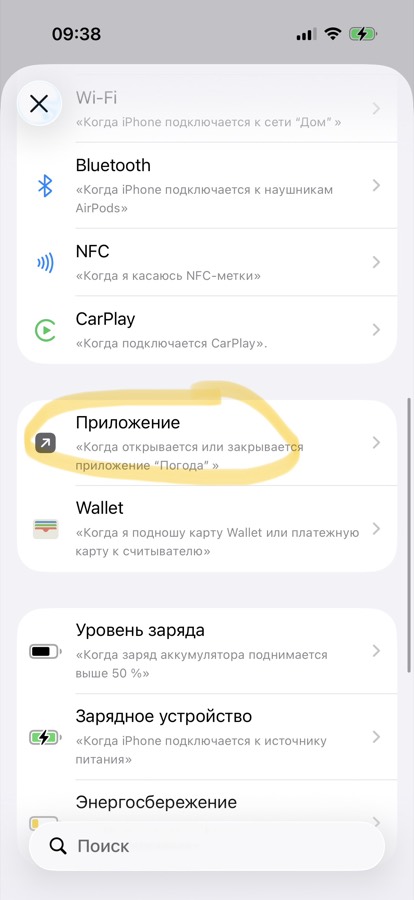
In the list of triggers, choose “App”
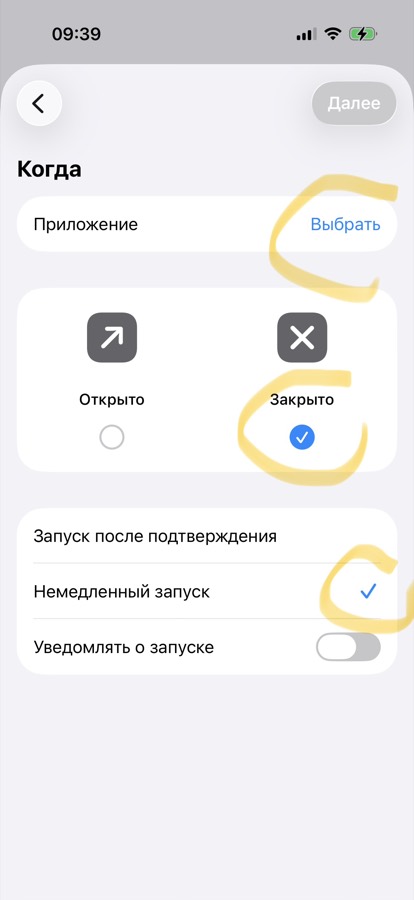
“Choose” the app, “Is Closed”, “Run Immediately”
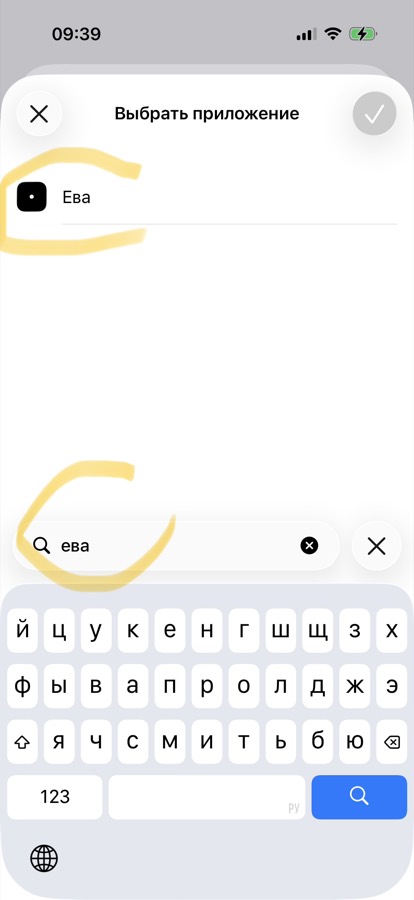
Find and select the Eva app
How to turn it off
To stop the auto-update — open Shortcuts → Automation, find the automation you want and delete it (or turn it off with the toggle inside).
Don't have Eva yet?
A free planner for iPhone with tasks, a daily digest, and task wallpapers.
Download on the App Store